Download PDF
Aquarino Controller — User Manual · Printed from manual.aquarino.com.br/en/controller/19-system-and-system-status/
PART IVGetting to know the screens
CHAPTER 19
System and System Status
19.1 System screen
It gathers the equipment's identification, the network details and every administrative action.
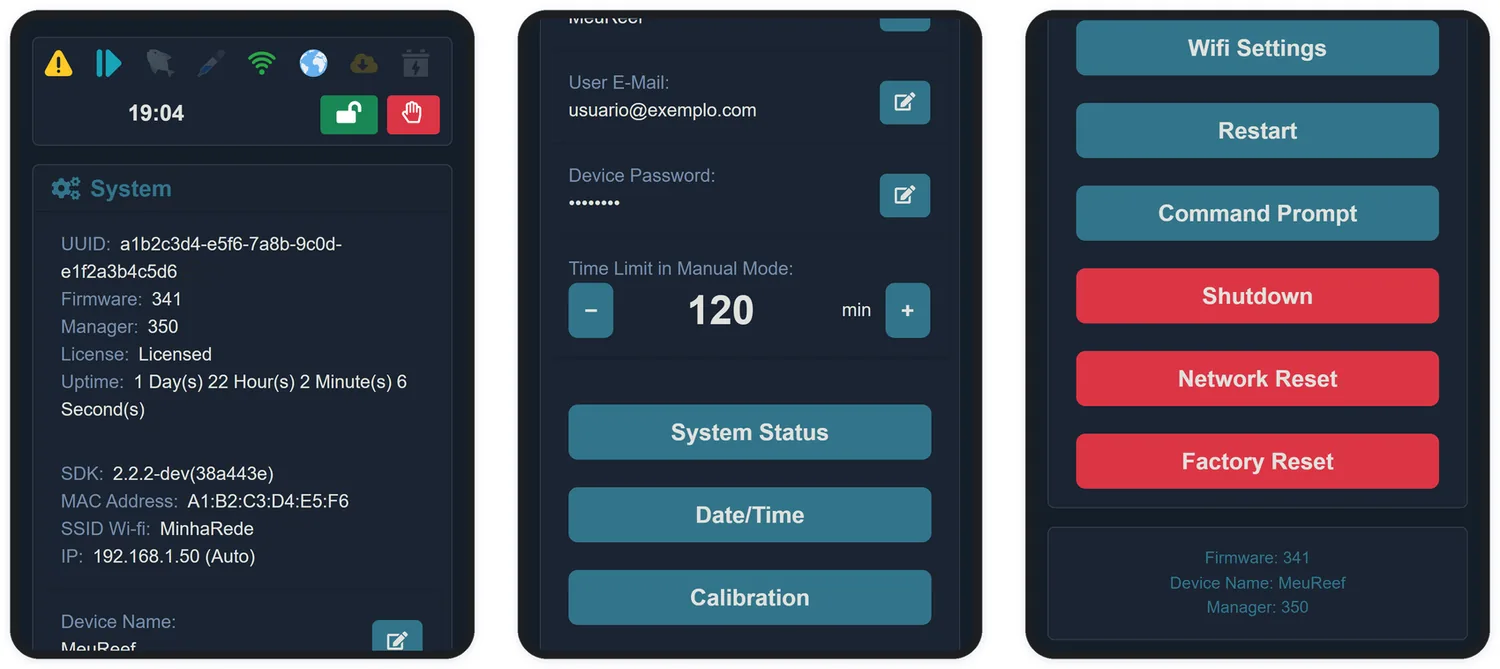
| Information | What it is for |
|---|---|
| UUID | The equipment's unique identifier — what you give to support and use in integrations. The button next to it copies it |
| Firmware | Version of the internal system |
| Manager | Version of the interface |
| License | A device registered with your e-mail shows as Licensed |
| Uptime | How long the equipment has been on without restarting |
| SDK | Version of the internal platform — information for support |
| MAC Address | Network identification — what you use to reserve the IP on the router |
| SSID / IP | The network it is connected to and the Local Manager's access address |
Editable fields
| Field | Detail |
|---|---|
| Device Name | Up to 10 characters, no spaces. Identifies the equipment in the app and in support |
| User E-Mail | The owner's e-mail — destination of the alerts and the account binding. Up to 60 characters |
| Device Password | Up to 10 characters. Protects the protected-mode padlock. Factory default: aquarino. When you change it, you receive a confirmation e-mail |
| Time Limit in Manual Mode | From 0 to 240 minutes. After that time, the system returns to automatic on its own. Zero disables the return |
Actions
| Button | What it does |
|---|---|
| System Status | Opens the detailed diagnostics (section 19.3) |
| Date/Time | Sets the clock — date, time and format. With internet, the equipment also syncs the time on its own |
| Calibration | Opens the sensor calibration centre (Chapter 20) |
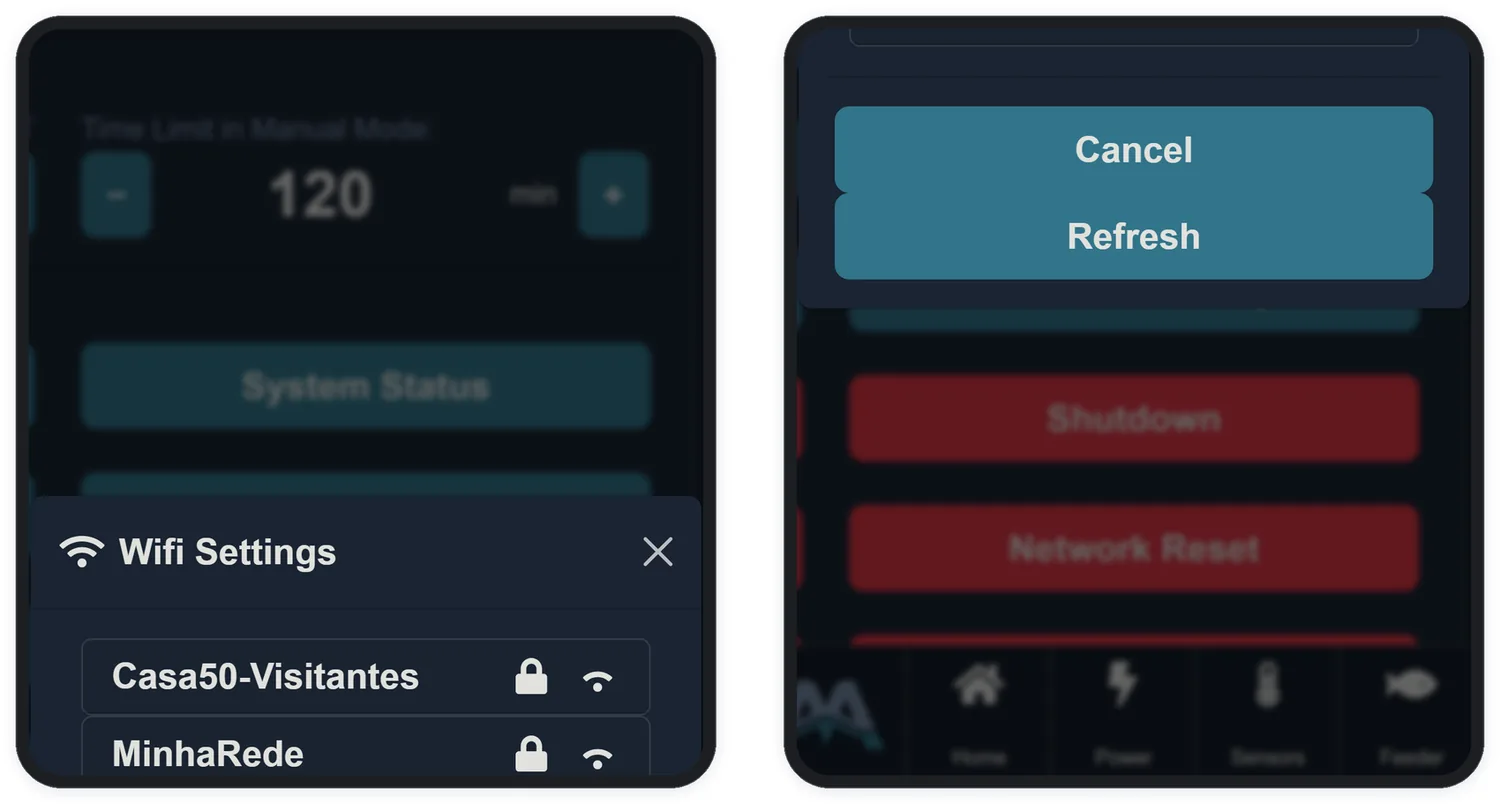
| Wifi Settings | Changes the Wi-Fi network — with the network scan, password, and the static IP option |
| Restart | Restarts the equipment. No settings are lost |
| Command Prompt | Sends text commands — a diagnostics feature, use it under support's guidance |
| Shutdown | Shuts operation down safely before you unplug it |
| Network Reset | Erases the stored Wi-Fi networks. The equipment restarts in setup mode (Chapter 8) |
| Factory Reset | Erases all settings: outlets, dosers, sensors, rules, feeder and network |
19.2 Date and time
The internal clock has its own battery and keeps the time even without power. With internet, it sets itself over the network; without internet, adjust it on the Date/Time screen — the Date/Time Now! button copies the time from the device you are using, in one tap.
19.3 System Status
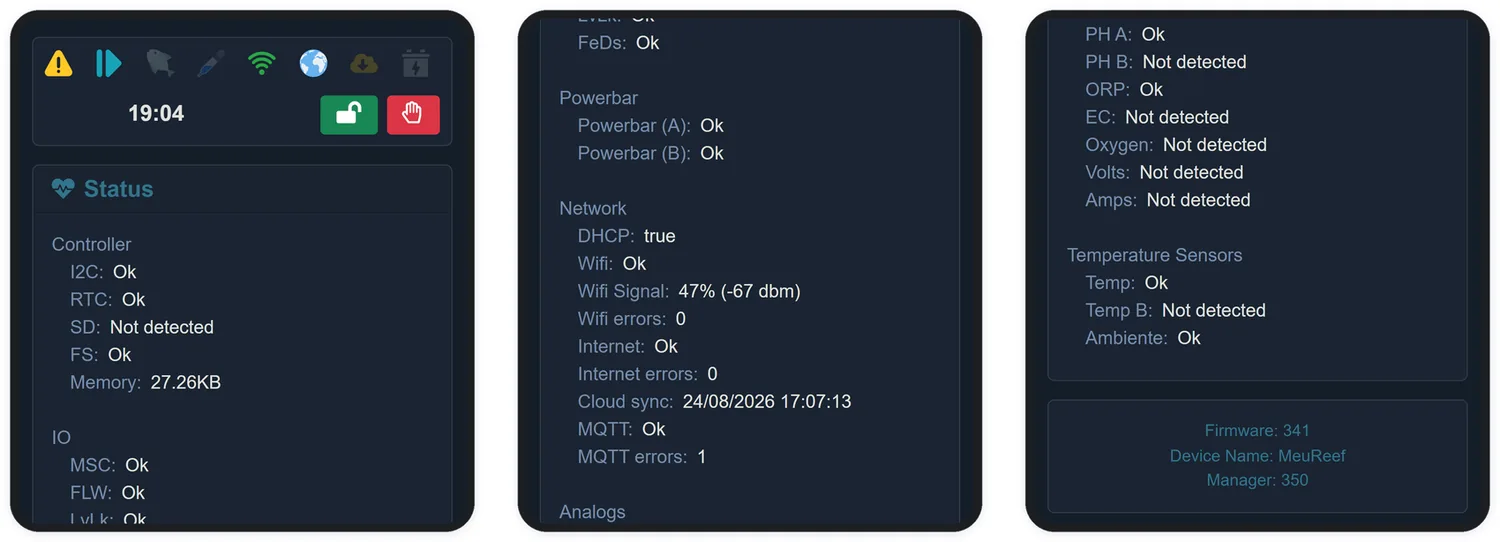
This is the diagnostics screen. You will probably never need it — but when you do, it is the one support will ask for.
| Block | What it reports |
|---|---|
| Controller | Internal health: I2C communication, clock (RTC), memory card (SD), file system and free memory |
| IO | The expansion circuits: miscellaneous, flow, level/leak and feeder/dosers |
| Powerbar | Detection of Powerbars A and B |
| Network | DHCP, Wi-Fi signal quality, error counters, last cloud sync and the MQTT state |
| Temperature Sensors | The state of each temperature sensor |
| Analogs | The state of each measurement module: Ok, Not Detected or Unstable |