Download PDF
Aquarino KH — User Manual · Printed from manual.aquarino.com.br/en/kh/12-the-app-preferences-and-shared-access/
PART IIDay-to-day use
CHAPTER 12
The app: preferences and shared access
12.1 Getting around the app
With the equipment added, the app opens on your device list. Tap the Aquarino KH to go into it.
Navigation sits at the bottom when you are on a phone and at the top on larger screens. There are six areas:
| Area | What you find there |
|---|---|
| Home | The current state of the aquarium at a glance (Chapter 7) |
| Graphs | History, comparisons and export (Chapter 10) |
| Logs | A record of everything the equipment did (Chapter 11) |
| Custom. | Display preferences (Chapter 12) |
| Configuration | Calibration, target, doser, CO2 Port and integrations |
| System | Versions, network, maintenance and diagnostics (Chapter 23) |
12.2 Sharing access
A beautiful aquarium demands constant attention, and having to travel for a few days tends to cause worry. Through the app you can share access to your Aquarino KH with someone you trust, who can watch over it and act while you are away.
- In the device list, find the Aquarino KH you own.
- Open the sharing option for that equipment.
- Enter the person's e-mail and confirm.
12.3 Custom. — preferences
This screen holds display preferences. Nothing here changes how the equipment works — only how it presents itself to you.
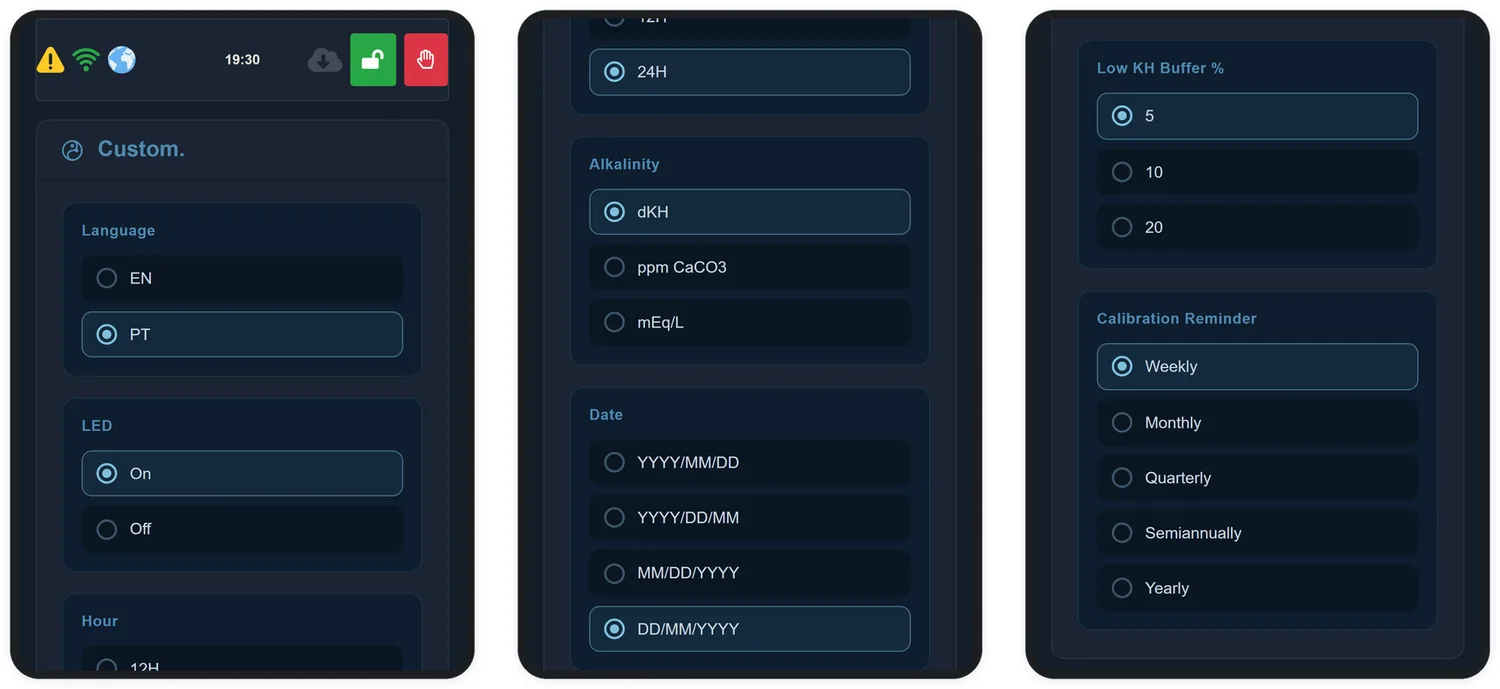
| Preference | Options |
|---|---|
| Language | Portuguese or English |
| LED | Turns the panel lights on or off. Useful if the equipment sits in a living space |
| Hour | 12- or 24-hour format |
| Alkalinity | Unit of measurement: dKH, ppm CaCO3 or mEq/L |
| Date | Date display format |
| Low KH Buffer % | The percentage at which the reservoir indicator starts warning: 5, 10 or 20% |
| Calibration Reminder | Reminder frequency: weekly, monthly, quarterly, half-yearly or yearly |