Download PDF
Aquarino Display — User Manual · Printed from manual.aquarino.com.br/en/display/4-first-power-on/
PART IIFirst power-on
CHAPTER 4
First power-on
The Display has no sensors, data cables or hoses: only the power supply. Choose a dry spot, away from splashes, where your eyes naturally fall, and where the home Wi-Fi reaches well.
- Plug the power supply into the Display's USB-C connector and into the wall socket.
- The screen shows the Aquarino logo, the model and "Starting display" for about 2 seconds.
- Follow the path for your model, below.
4.1 Touch models: the first-use wizard
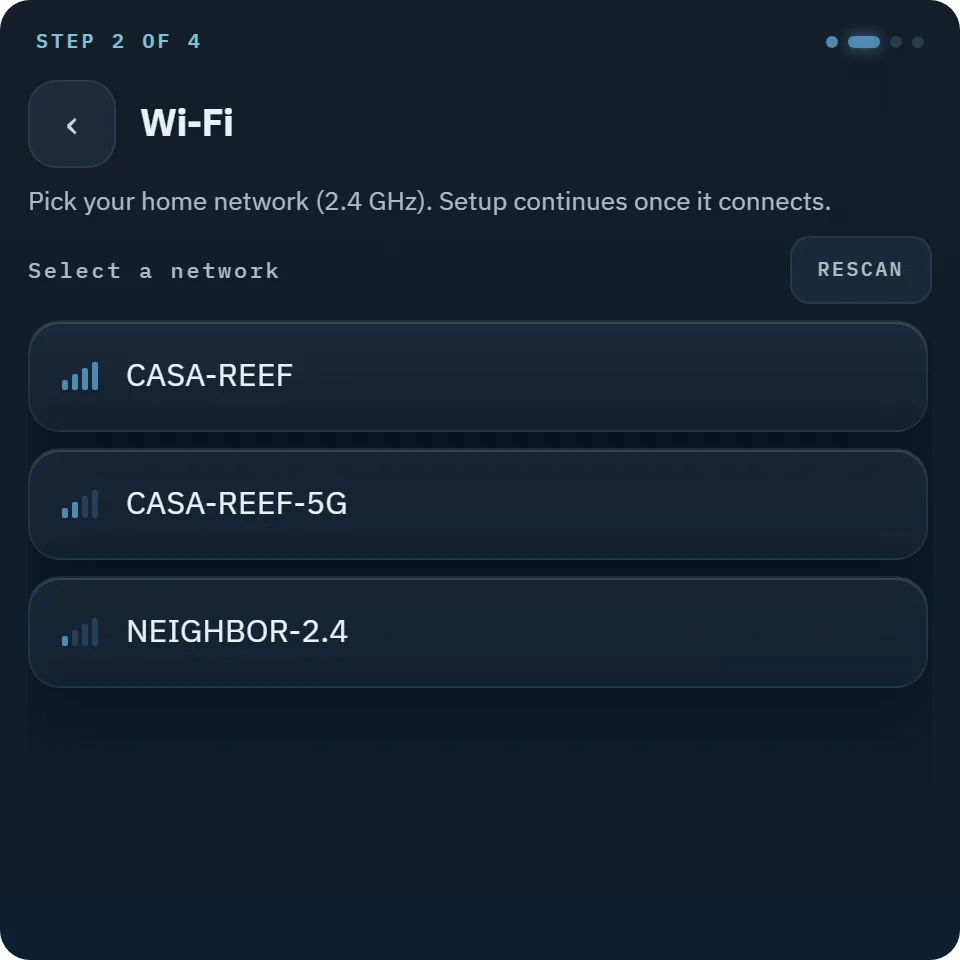
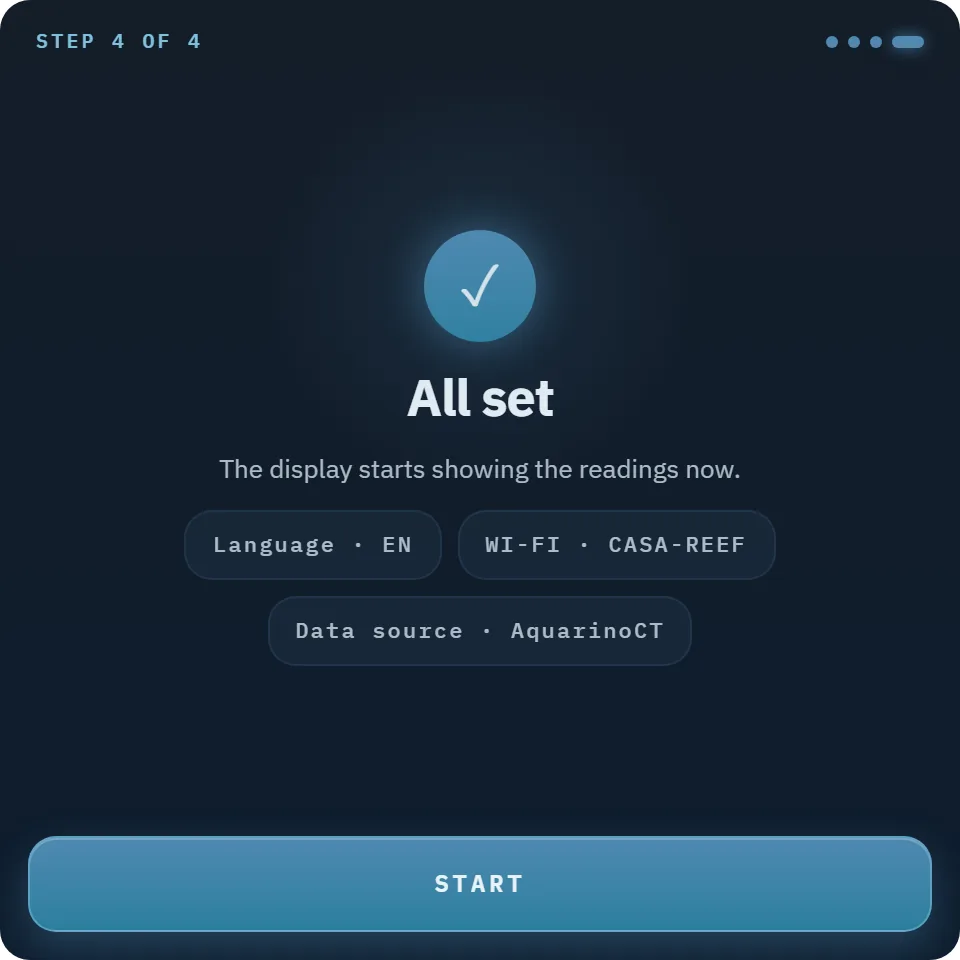
On the 3.5" and the 4.0", the first power-on is guided by a four-step wizard, on the screen itself. It takes about two minutes.
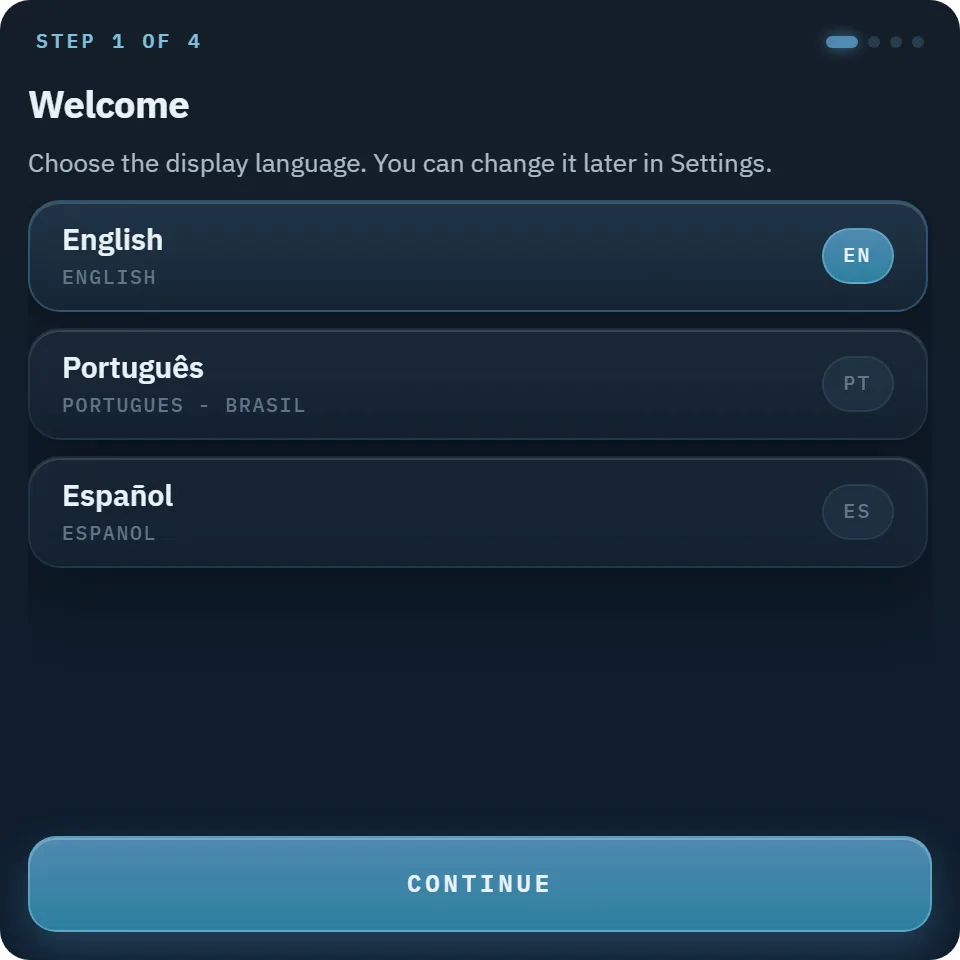
- Language. The screen says "Welcome". Tap English, Português or Español: the language changes immediately. Tap CONTINUE.
- Wi-Fi. Choose your home network from the list (if it does not appear, tap RESCAN), type the password (tap SHOW to check it) and tap CONNECT. Once it says "Connected", the wizard moves on by itself. This step cannot be skipped: without a network, the Display has nowhere to read the data from.
- Data source. The list shows the Aquarino KH and Controller found on your network. Tap your device and then CONTINUE. If it does not appear yet, tap LATER: the source can be chosen at any time (Chapter 6).
- All set. The screen sums up language, network and source. Tap START: your aquarium's values appear right after.
4.2 1.47" model: through the portal on your phone
Without touch, the 1.47" is set up through the browser. On the first power-on it creates its own Wi-Fi network and shows on the screen what to do:
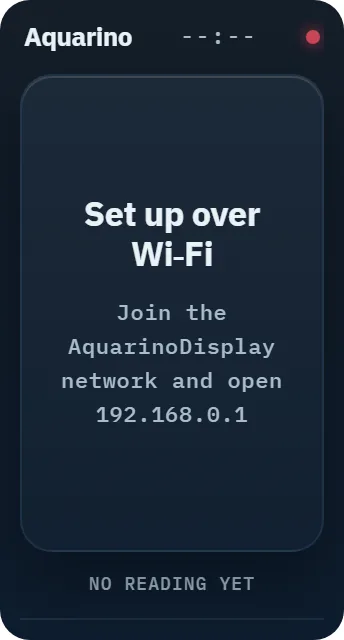
- On your phone, open the Wi-Fi settings and connect to the AquarinoDisplay network. It is open, with no password and no internet; if the phone warns you, choose to stay connected.
- On many phones the portal opens by itself. If it does not, type 192.168.0.1 in the browser.
- In the Wi-Fi tab, choose your network, type the password and tap Save & reboot display.
- The Display restarts and joins your network. The screen shows "Data source" with the new portal address, for example "Open 192.168.1.20 on your phone".
- Switch your phone back to the home network, open that address and choose the data source (Chapter 6).