Download PDF
Aquarino Display — User Manual · Printed from manual.aquarino.com.br/en/display/14-software-updates/
Software updates
The Display keeps itself up to date: it looks for a new version when it is switched on and then every 30 days, and installs the right version for your screen model. The update keeps all settings: network, data source, shortcuts and preferences stay as they were.
14.1 What appears on the screen
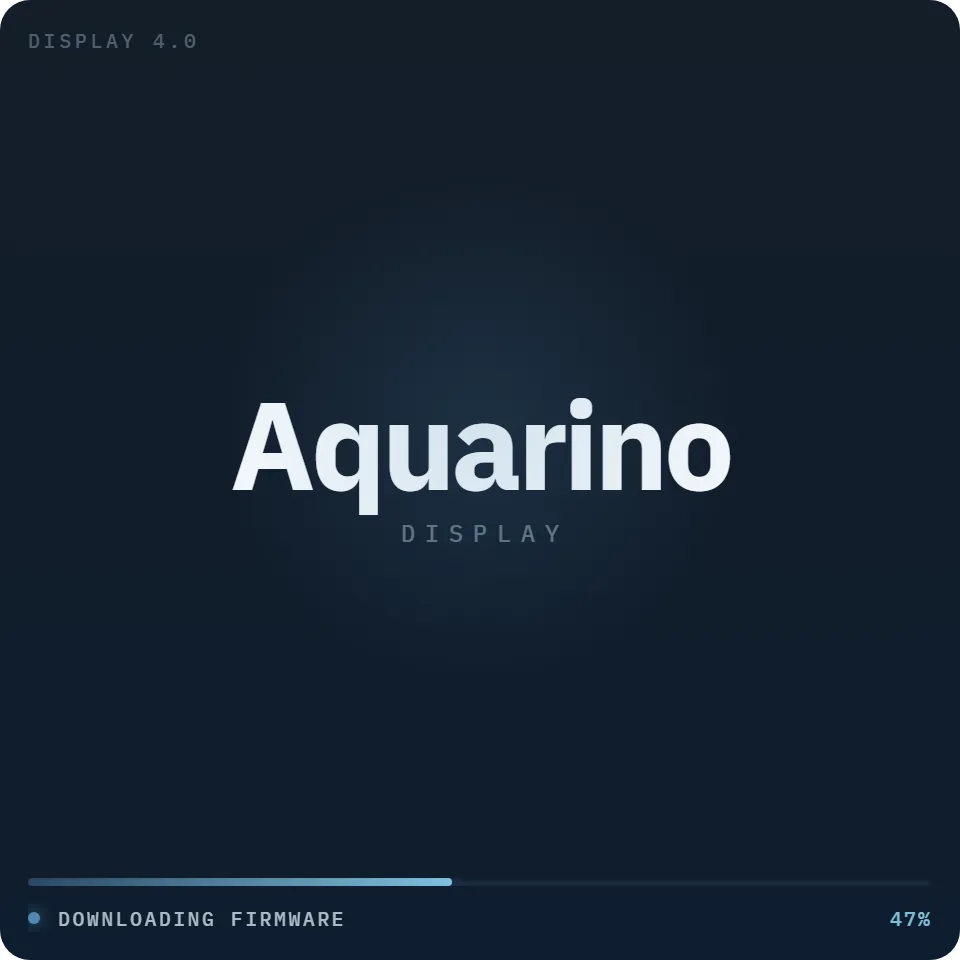
- PREPARING UPDATE;
- DOWNLOADING FIRMWARE, with the percentage;
- VALIDATING FIRMWARE;
- RESTARTING: the Display comes back with the new version.
If something goes wrong, the screen shows "UPDATE FAILED" for a few seconds and the Display keeps working on the version it already had. It tries again later.
14.2 Update now
Do not want to wait? In the portal, System tab, tap Check to look for a new version and Install to update right away. The update status (up to date, available, downloading) appears there and, on the touch models, in the device information card in Settings.