Download PDF
Aquarino Display — User Manual · Printed from manual.aquarino.com.br/en/display/5-connecting-to-your-wi-fi-network/
PART IIInstallation and pairing
CHAPTER 5
Connecting to your Wi-Fi network
If it cannot join a known network for about a minute, the Display opens its own Wi-Fi network and the screen guides you: "Set up over Wi-Fi — join the network and open 192.168.0.1".
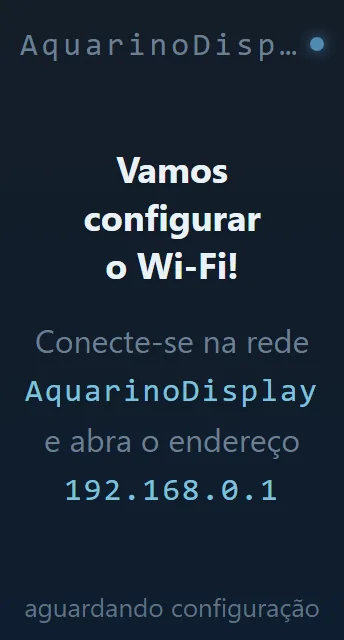
- On your phone, open the Wi-Fi settings and connect to the network named on the screen — AquarinoDisplay from the factory. It is open, with no password and no internet; if the phone warns you, choose to stay connected.
- Open the browser and type http://192.168.0.1 — on many phones the portal opens by itself.
- On the portal's Wi-Fi tab, pick your network from the list, enter the password (at least 8 characters) and save.
- The Display restarts and joins your network. Done: the screen's bar now shows the Wi-Fi signal.
| Network requirement | Detail |
|---|---|
| 2.4 GHz only | Like the other Aquarino devices, the Display does not connect to 5 GHz networks |
| Reasonable signal | Networks with a very weak signal (below −75 dBm) do not appear in the portal's list |
| Password of 8+ characters | The portal does not accept shorter passwords — it is the WPA standard minimum |