Download PDF
Aquarino Display — User Manual · Printed from manual.aquarino.com.br/en/display/13-on-screen-settings-and-the-browser-portal/
On-screen settings and the browser portal
Everything on the Display can be set up in two ways: through the gear, on the screen itself (touch models), and through the portal, in the browser of your phone or computer (all models).
13.1 Settings on the screen (touch models)
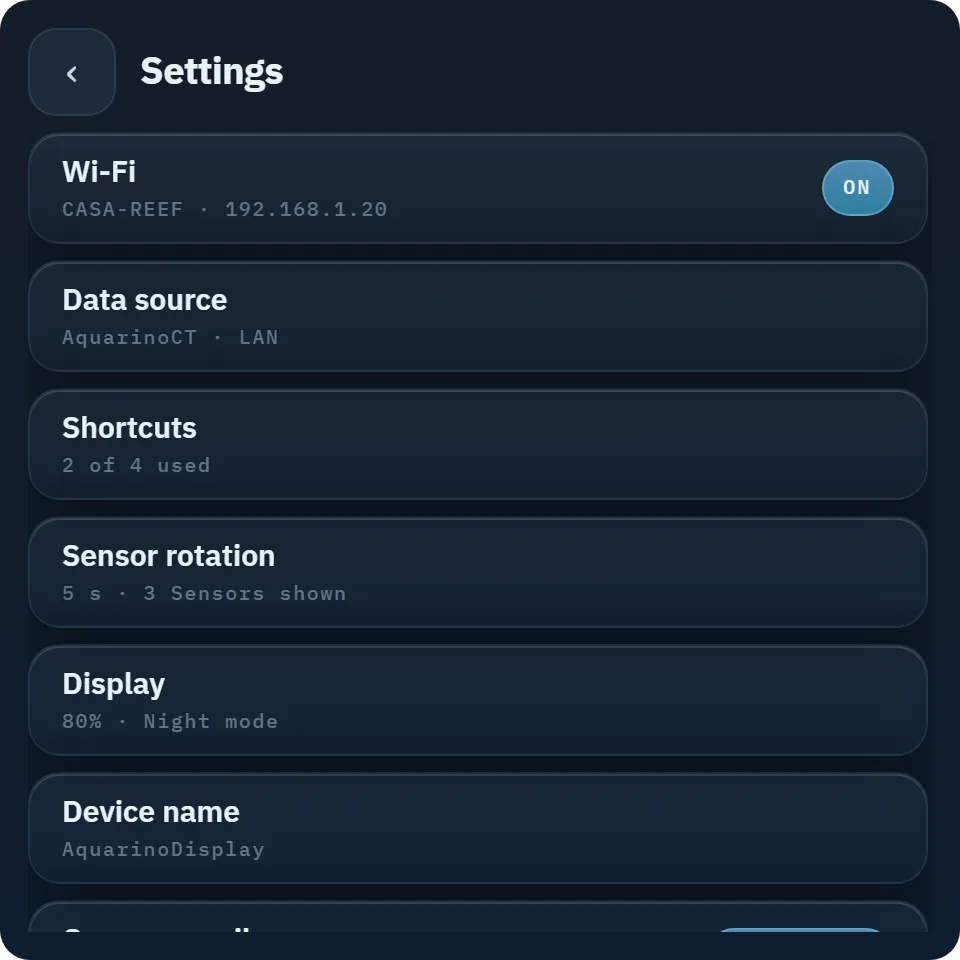
Tap the gear, in the corner of the home screen. Settings brings together Wi-Fi, Data source, Sensor rotation, Shortcuts, Display, Language, Date and time, your e-mail, the device name and a device information card, which shows the registration, the unique identifier and the update status.
13.2 The portal in the browser
The portal opens in any browser on the same network as the Display, at the address shown in the footer of the screen, for example 192.168.1.20. During the first setup, or when the Display has no network, the address is 192.168.0.1, inside its own network (Chapter 5).
The portal was made for the phone: the tabs stay pinned at the top and slide sideways, and the fields and buttons are large enough for a finger.
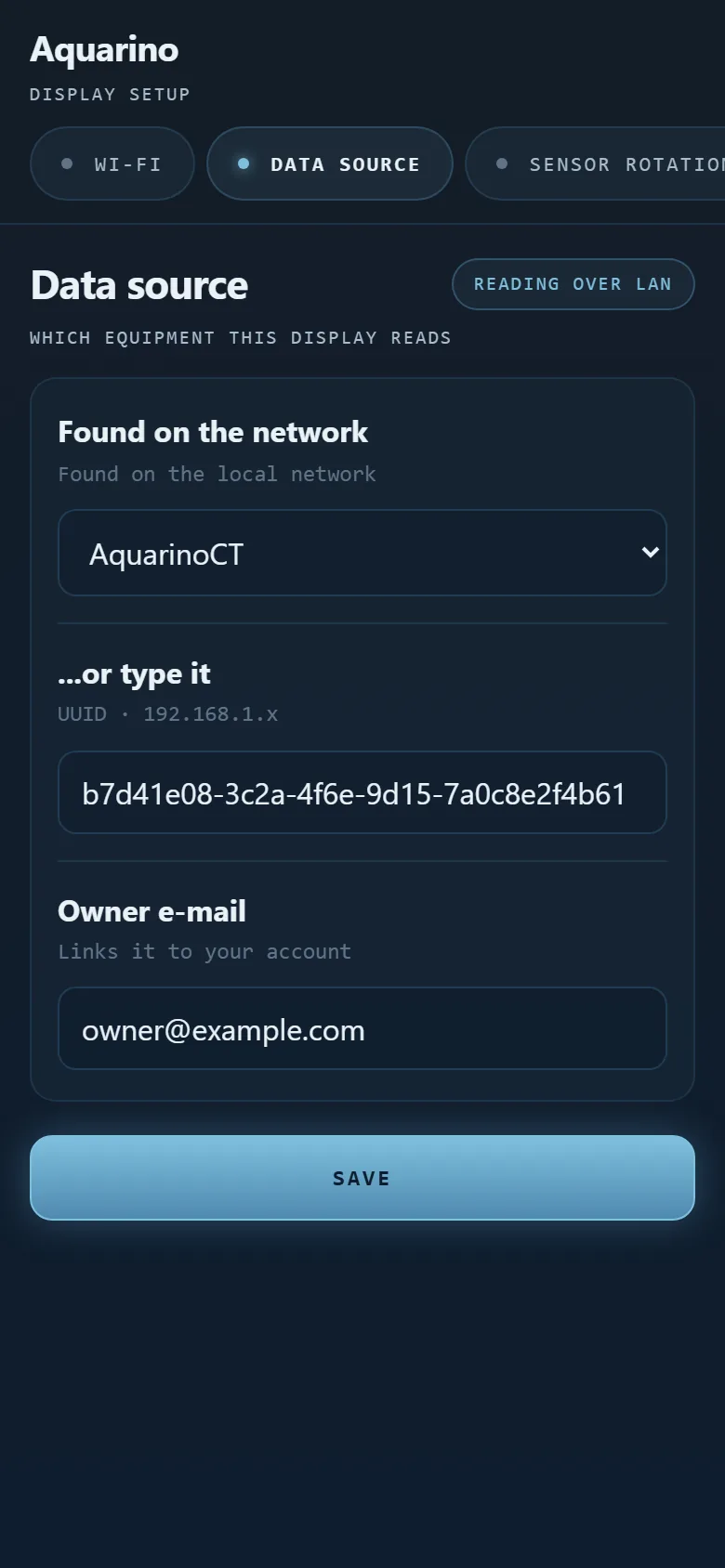
| Tab | What it sets up |
|---|---|
| Wi-Fi | The home network (Chapter 5) |
| Data source | The mirrored device (found on the network, unique identifier or address) and your e-mail (Chapters 6 and 7) |
| Sensor rotation | The time each sensor stays on the screen, how often the device is read and which sensors appear (Chapters 6 and 9) |
| Display | Brightness, theme, language, rotation, night mode and rest mode (Chapter 11) |
| Shortcuts | The command buttons; touch models only (Chapter 12) |
| System | Device name, identifier and registration, model and version, connection, update, factory reset and restart |
13.3 Restart
Use Restart, in the portal's System tab, or unplug the power supply for a few seconds. No settings are lost.
13.4 Factory reset
Returns the Display to the state it was in when it came out of the box. It is in the portal's System tab and in Settings on the screen, always with a confirmation.
| Erases | Keeps |
|---|---|
| Wi-Fi, data source, rotation, shortcuts, screen settings, owner e-mail and device name. The language goes back to English | The unique identifier and the registration: the device does not need to be registered again |
After the reset, the touch models open the first-use wizard, and the 1.47" opens the AquarinoDisplay network for setup (Chapter 4).