Download PDF
Aquarino APP — User Manual · Printed from manual.aquarino.com.br/en/app/7-adding-equipment/
Adding equipment
The setup wizard takes care of everything: it talks to the equipment, hands over your network password and registers it to your account. There are six steps and it takes just a few minutes.
7.1 Before you start
- The equipment must be plugged in;
- Have your Wi-Fi network name and password at hand — and confirm the network is 2.4 GHz;
- Stay close to the equipment during the process.
7.2 The six steps
1 · Device type
Choose Controller, KH or Display.
2 · Prepare your device
Power the equipment on and wait for the ready signs: the startup beep and the blinking green LED — the blinking is what indicates it is in setup mode. If the LED does not blink, unplug it, plug it back in and wait.
3 · Connect to Aquarino
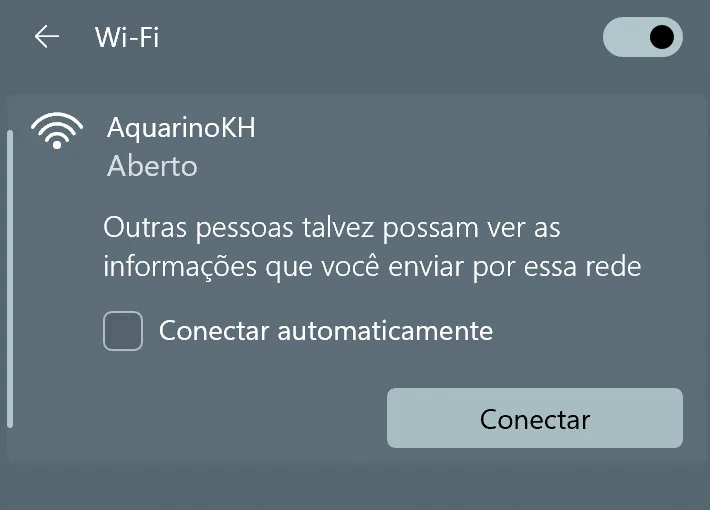
The equipment creates a temporary Wi-Fi network — Aquarino for the Controller, AquarinoKH for the KH, AquarinoDisplay for the Display. The app shows the name and the Open Wi-Fi Settings button:
- Connect your phone to the indicated network.
- It has no password and no internet — when the phone warns you, choose to stay connected.
- Return to the app and tap I am connected.
4 · Network
The app lists the networks the equipment can see, from strongest to weakest. Pick yours, enter the password and tap Configure. Your network didn't show up? Refresh networks runs the scan again, and the Manual SSID option covers hidden networks.
5 · Configuring
The app sends your e-mail to the equipment — that is what links it to your account —, hands over the network and restarts it. The screen shows a 5-minute countdown and stays awake until the end; the app polls the cloud every few seconds until the equipment shows up as registered.
6 · Done
Product photo, green icon, Done. The equipment joins your list and is already responding — from home or from anywhere.
7.3 If something fails
| Situation | What to do |
|---|---|
| The 5-minute countdown ran out | It is almost always the Wi-Fi password typed wrong. Run the wizard again, checking the password carefully |
| The temporary network does not appear | Confirm the green LED is blinking. Equipment that was configured before does not open the network — use Reset Network on its System screen |
| The app does not list the networks | Confirm the phone really is on the equipment's network and tap Refresh networks |
| Configured, but it does not appear in the list | Check that the equipment connected (solid green LED) and pull the list to refresh |