Download PDF
Aquarino APP — User Manual · Printed from manual.aquarino.com.br/en/app/3-creating-and-activating-the-account/
PART IIYour account
CHAPTER 3
Creating and activating the account
The Aquarino account is what links the equipment to you — it is how you sign in to the app, receive alerts and share access.
3.1 Creating the account
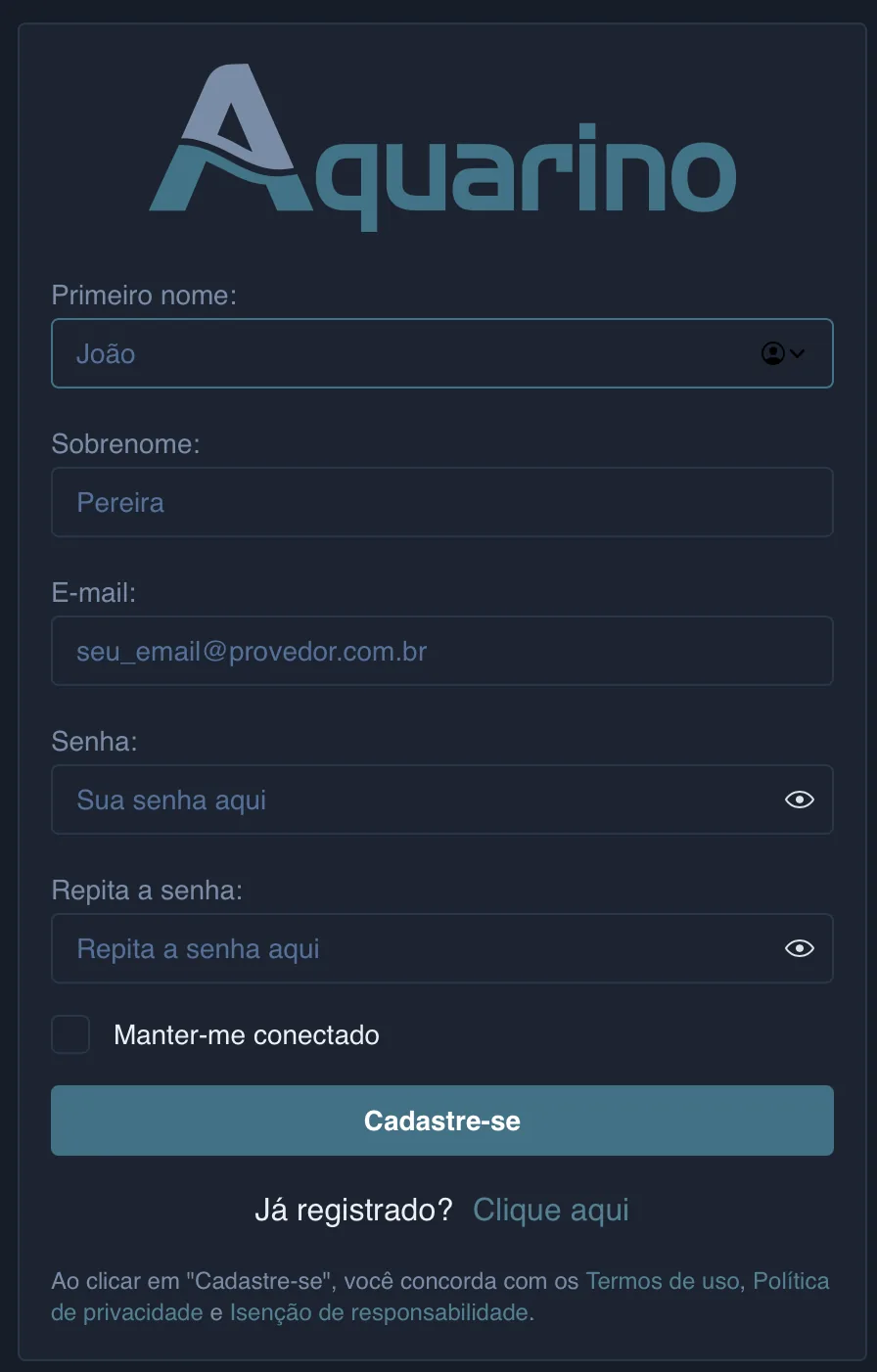
On the sign-in screen, tap Create an account and fill in:
| Field | What to enter |
|---|---|
| First Name and Last Name | How you want to be identified |
| Phone | With the country selector. Used by support to reach you |
| An address you actually check — that is where the activation PIN and the alerts arrive | |
| Password and Confirm password | See the requirements below |
Password requirements
- 8 to 60 characters;
- at least one uppercase letter;
- at least one lowercase letter;
- at least one number;
- at least one special character.
The app shows the list on screen and ticks off each requirement as you type.
3.2 Activating with the PIN
Once the registration is complete, you receive a 6-digit PIN by e-mail. Enter it on the activation screen and tap Activate account.
3.3 Forgot your password
On the sign-in screen, Forgot password? sends a code by e-mail; with it, you set the new password right away. If you already have a valid code, the I already have a code option jumps straight to that step.