Download PDF
Alexa Skill — User Manual · Printed from manual.aquarino.com.br/en/alexa/4-linking-your-aquarino-account/
Linking your Aquarino account
Linking is what authorises Alexa to talk to your equipment. It uses the same login as the Aquarino app, and it happens only once.
4.1 Step by step
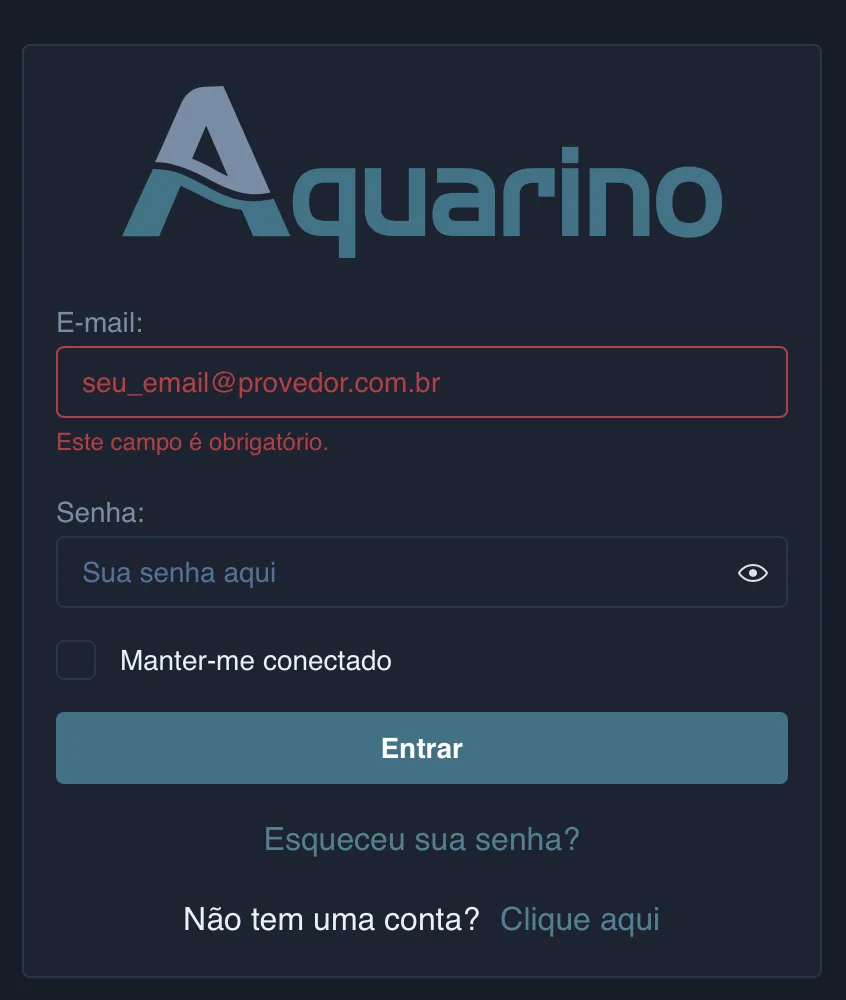
- When you enable the skill, Alexa opens a browser window on the Aquarino sign-in page.
- Enter the e-mail and the password of your Aquarino account — the same as in the app — and sign in.
- The authorisation screen appears, showing what Alexa is asking for: read your devices and control your devices.
- Tap Authorise.
- The browser returns you to the Alexa app with the confirmation that the account has been linked.
4.2 If you do not have an account yet
Linking requires an Aquarino account that has already been created and activated. If you do not have one, create it in the Aquarino app first: registration asks for name, phone, e-mail and password, and activation is done with a six-digit PIN sent by e-mail. The app manual describes that process in detail.
4.3 When you need to link again
The link keeps itself alive for long periods and renews automatically while you use the skill. Even so, in a few situations it has to be done again:
- If you removed the skill and installed it again;
- If you have not used it for a very long time — the authorisation expires after a year without use;
- If Alexa starts replying that the account is not linked, even with the skill enabled.
Doing it again is the same path: disable the skill in the Alexa app, enable it once more and authorise.